

Hoodle LMS Student Usage & Examination Guide
A complete walkthrough for IIT Bhilai students: 1-click course joining, daily anti-proxy QR attendance scanning, lab exam lockdown protocols, countdown timers, and cryptographic submission receipts.
Signing In & Account Setup
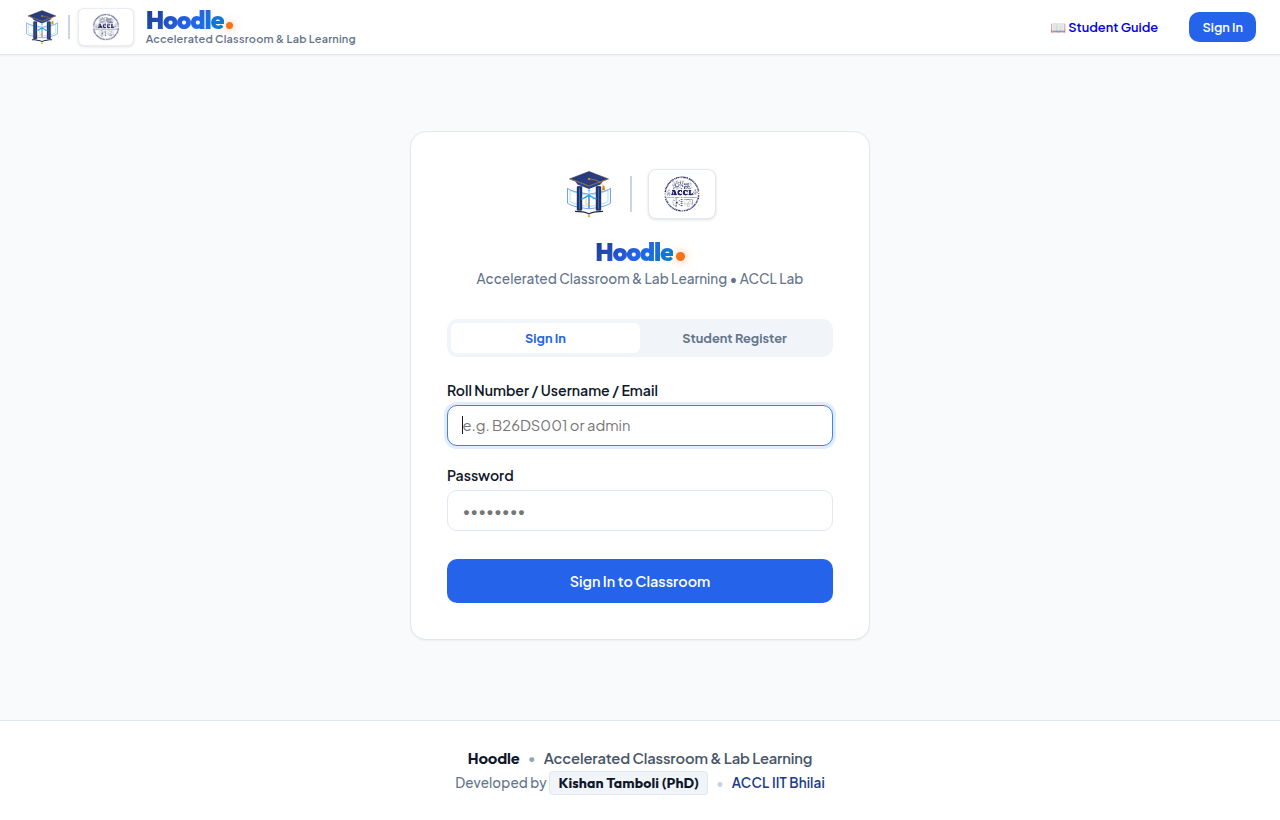
Access Hoodle LMS using your assigned IIT Bhilai roll number or institute email address.
-
Open the LMS Portal:
Navigate tohttp://10.10.14.104/lmsorhttp://10.10.14.104:8095on the campus network. -
Enter Your Credentials:
Use your student roll number (e.g.,b26cs021or12310120) or institute email. Default initial password is set to your lowercase roll number (e.g.b26cs021). -
First-Time Password Change:
If prompted, update your password to a secure personal passphrase. You can also update it anytime via the 🔑 Password link in the top bar.
Joining Your Courses (1-Click Links & Codes)
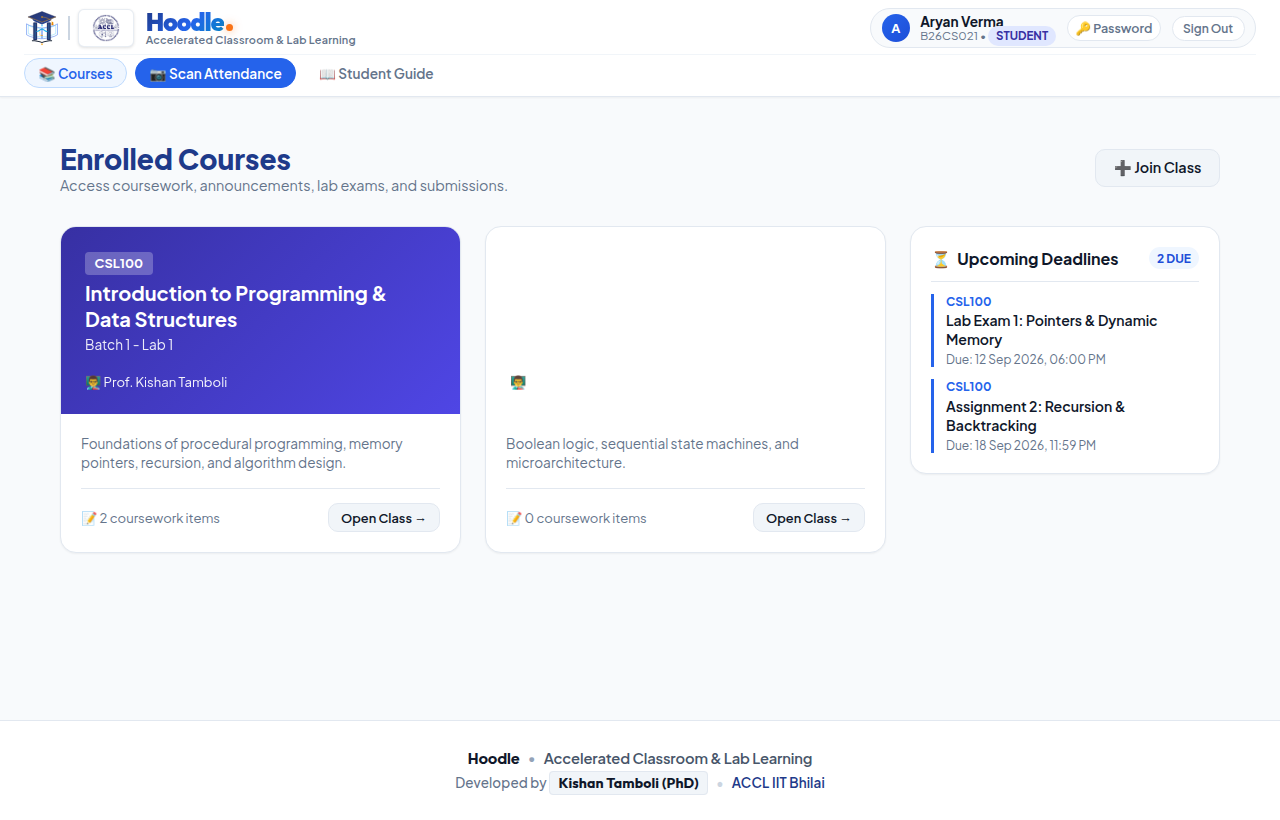
You can enroll in courses using either a direct 1-click short invite link or a 6-character class code.
Method A: Direct Short Invite Links
When instructors share a course invite, simply tap the short link. Hoodle LMS automatically registers and enrolls your student account:
Method B: Dashboard Join Code
- On your 📚 Courses dashboard, click the + Join Class button.
- Enter the 6-character class code provided by your instructor (e.g.
CS100A). - Click Join Course. The course card immediately appears on your dashboard.
Course Stream, Classwork & Submissions
Keep track of lecture announcements, lab assignments, and upcoming deadlines in one unified workspace.
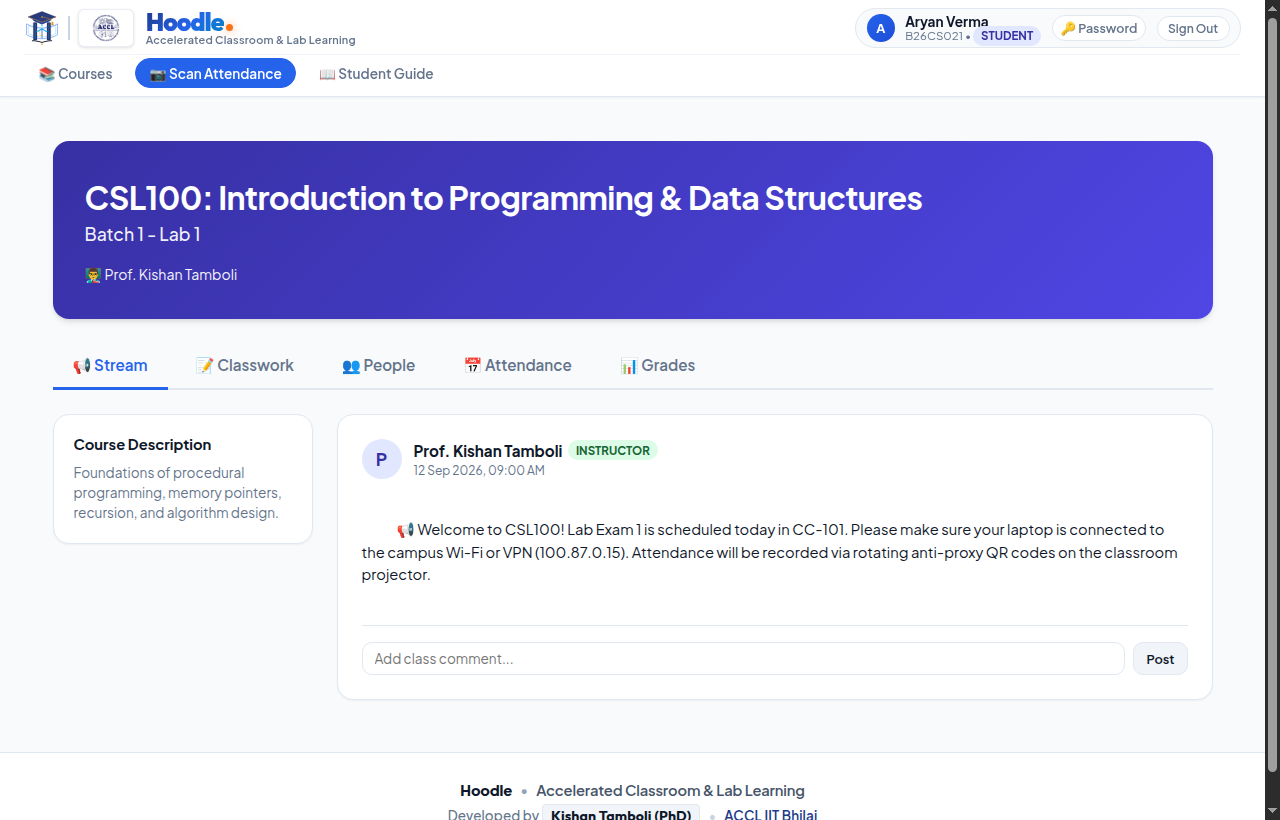
- 📢 Stream Tab: Live class announcements from professors, lab TAs, and important exam venue notices.
- 📝 Classwork Tab: Browse lecture slides, lab manuals, homework, and coding problem statements organized by topic.
- ⏰ Upcoming Deadlines Box: The left sidebar highlights all imminent deadlines so you never miss an assignment.
-
📁 Allowed File Types: Always check allowed extensions (e.g.
.c,.py,.zip,.pdf) before uploading. Files exceeding size limits or wrong extensions are rejected cleanly.
Classroom Attendance via Anti-Proxy Dynamic QR
Hoodle LMS features a dynamic anti-proxy attendance engine that rotates cryptographic QR codes on the lecture projector every 45 seconds.
-
Locate the QR Projector Screen:
At the beginning of each lecture or lab, the instructor displays the rotating dynamic QR code on the classroom projector screen. -
Open the Camera Scanner:
Click the 📷 Scan QR button in the top navigation bar. -
Scan the Projected Code:
Point your mobile camera at the projector screen. As soon as the code is recognized, the system redirects to your verification page. -
Photo Upload Fallback:
If your mobile browser blocks the live video stream or you are on plain HTTP, click the 📁 Upload Photo / Take Picture button in the modal. Your phone's native camera opens automatically, takes a quick photo of the screen, and decodes the QR instantanously! -
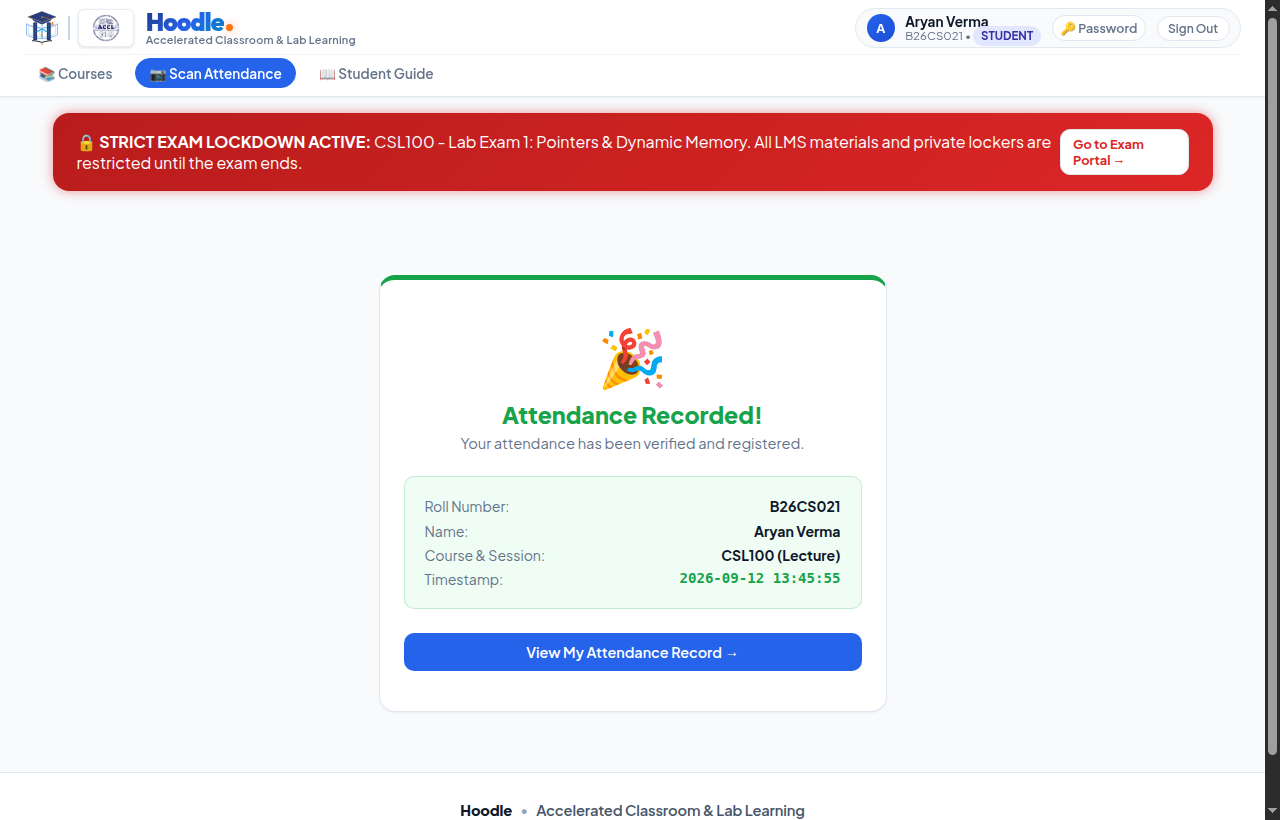
Confirmation & Logging:
Once confirmed, your presence is atomically logged in the server database with timestamp, session type (Lecture/Lab), and IP address.
Timed Lab Exams & Strict Lockdown Mode
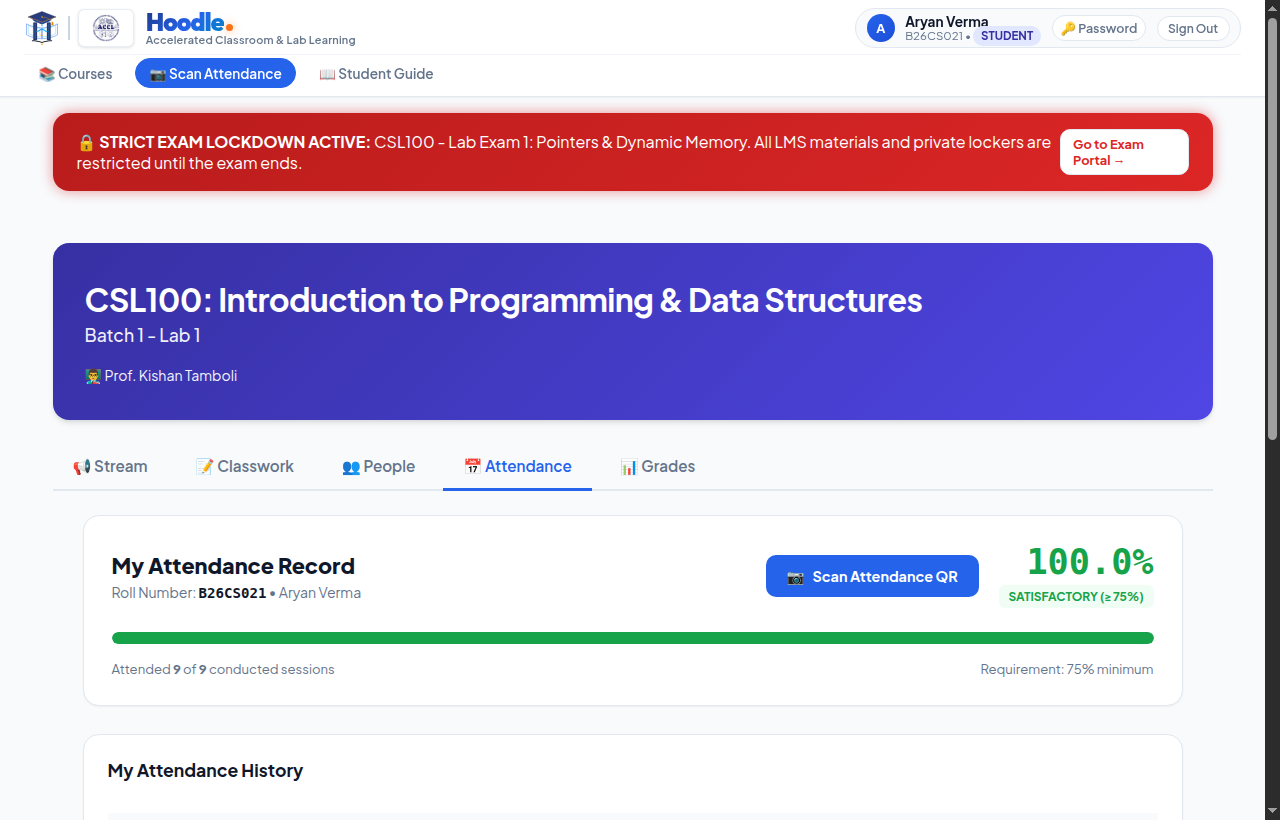
During lab exams, Hoodle LMS enforces Academic Integrity Lockdown to maintain strict fairness across all examination halls.
🔒 Strict Lockdown Rules
- Isolated Portal Access: When an exam is live, browsing other course materials, slides, or student lockers is locked. Any navigation attempt redirects directly to the exam.
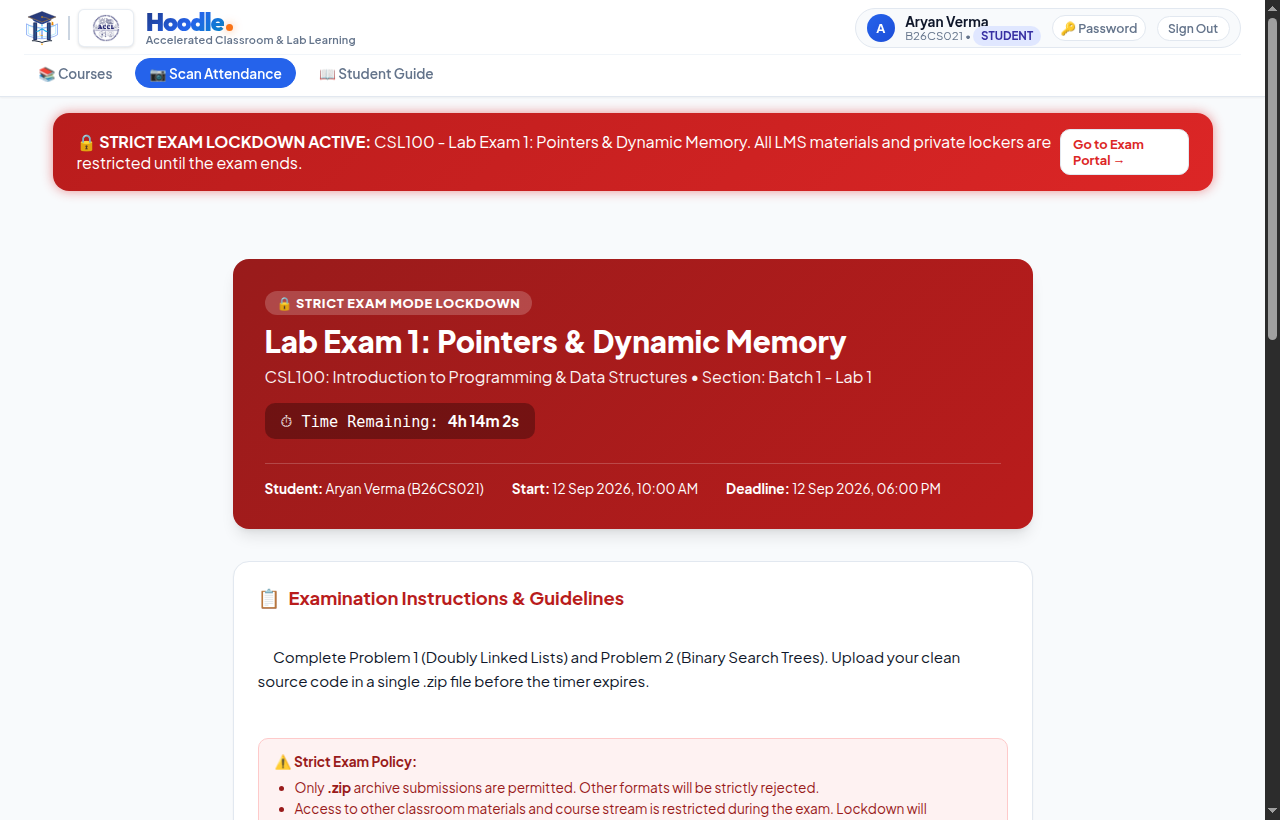
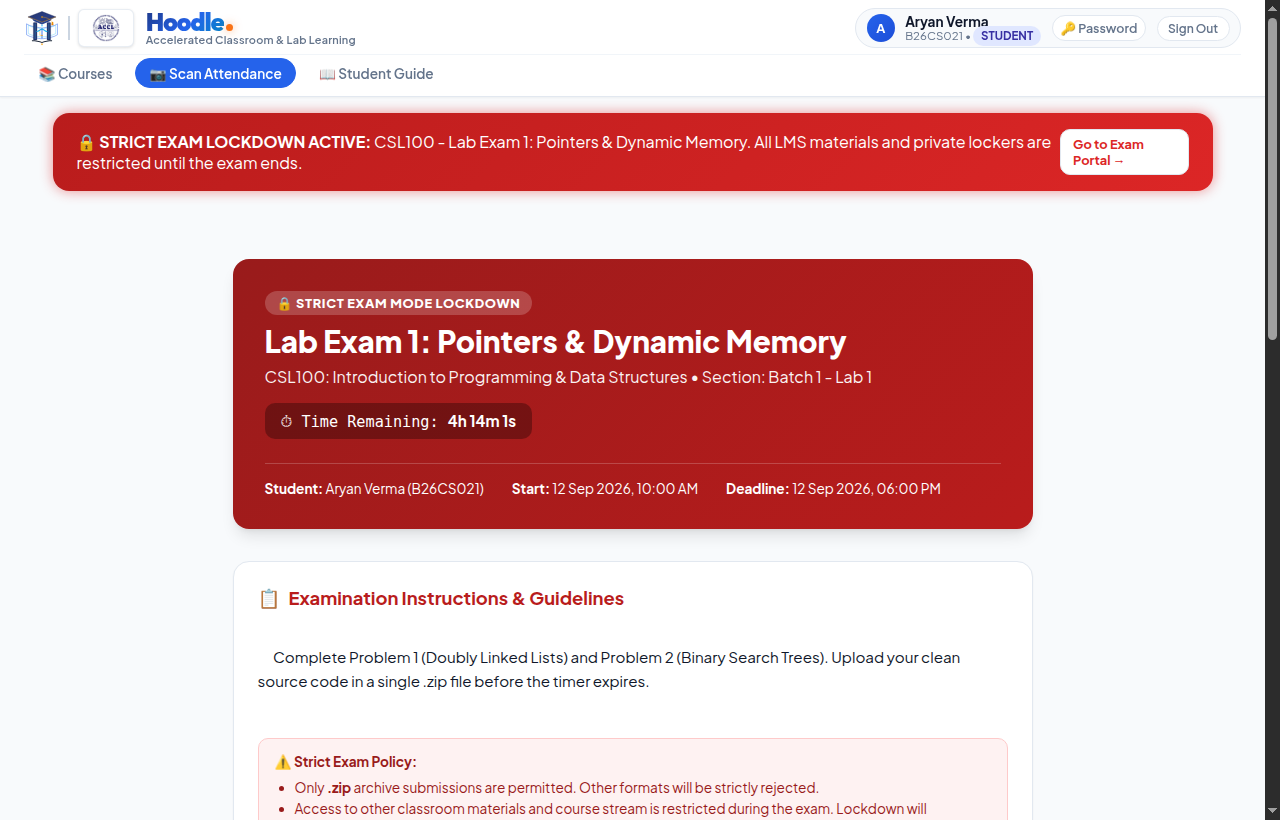
- Live Countdown Clock: The exam page displays a live countdown timer ticking down to the exact second.
- Strict Deadline Enforcement: When the countdown reaches
00:00:00, the submission gateway closes immediately. Submissions cannot be made after the time has expired. - Single Submission Policy: If the exam is configured for single submission, your uploaded work is permanent and locked immediately. If multiple submissions are permitted, re-uploads are accepted only until the timer expires.
How to Submit Your Exam:
- Select your designated Lab Venue (e.g.
CC-101,Lab 1). - Choose your single solution file (e.g.,
b26cs021_lab1.zip). - Click Upload & Finalize Submission before the countdown timer hits zero.
Digital Submission Receipts & SHA-256 Integrity
Every assignment and exam submission generates an immutable digital receipt with a cryptographic SHA-256 fingerprint.
When your file is safely uploaded to the LMS server, the system calculates a 256-bit hash of the exact file contents and generates an official Digital Submission Receipt.
- Official Receipt Token: e.g.,
RCPT-CSL100-20260912-B26CS021-8F4343 - Cryptographic SHA-256 Hash: Proof that your file was not tampered with.
- Atomic Server Timestamp: Official millisecond timestamp recorded by the server clock.
- File Metadata: Original file name, byte size, and assigned computer lab name.
Monitoring Attendance Quotas & Grade Progress
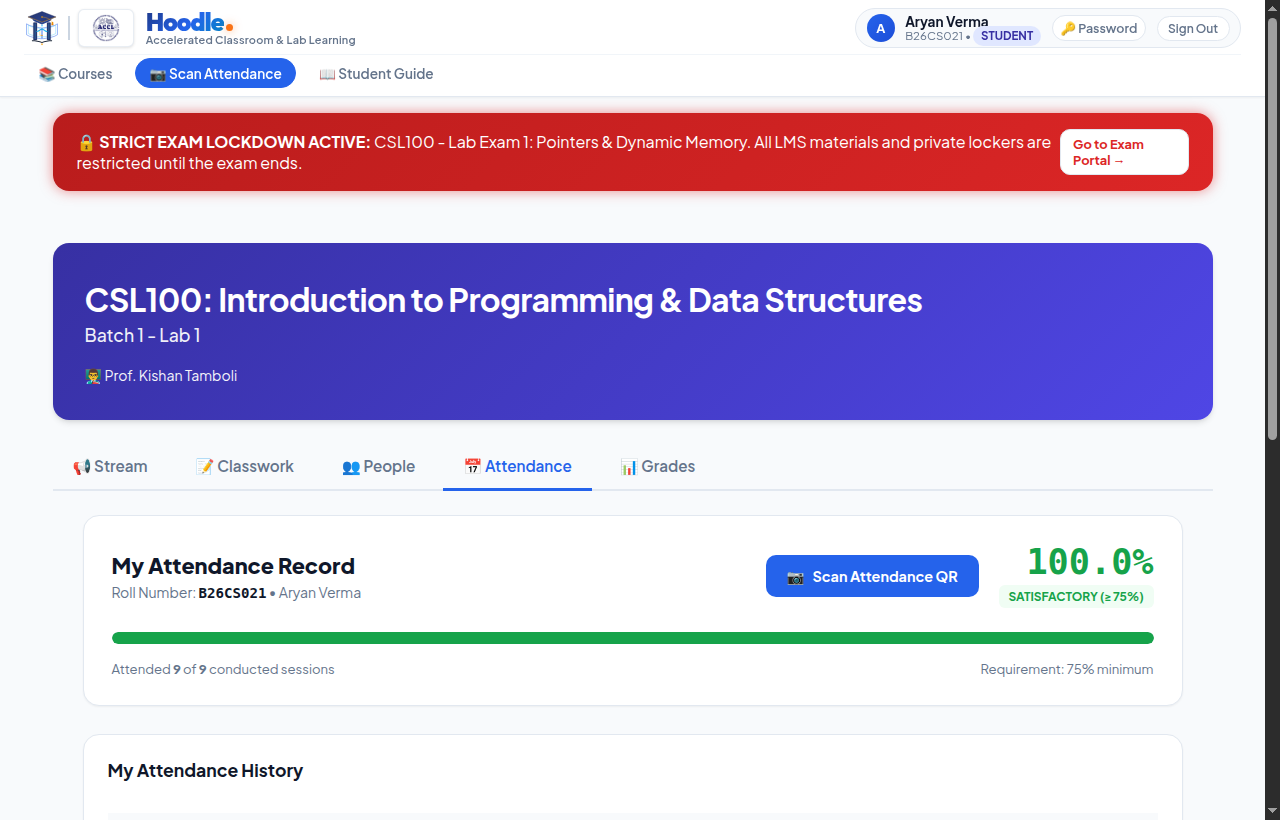
Track your attendance percentage against the mandatory 75% IIT Bhilai institute requirement.
-
🟢 Satisfactory Status (≥ 75%):
When your attendance is 75.0% or higher, your progress bar turns green with a Satisfactory badge. You remain fully eligible for end-semester examinations. -
🔴 Shortage Warning (< 75%):
If your attendance drops below 75%, the progress bar turns red with an immediate Shortage Warning alert. Attend all upcoming sessions to restore your standing. -
📜 Complete Session History:
The table logs every single lecture, lab, and tutorial session you attended, with exact recording timestamps and verification methods.
Network Access & Portal Connectivity
How to reach Hoodle LMS from classrooms, hostels, and computer labs across the campus network.
Standard web address accessible across all academic buildings, classrooms, and hostel LAN:
http://10.10.14.104/lms
Direct backend port connection for fast access and lab workstation setups:
http://10.10.14.104:8095
If using a browser that requires HTTPS for webcams, switch seamlessly via:
https://10.10.14.104/smartaccess/